

Let's continue our journey into LLMs and Gemini! In the previous article, we moved beyond simple text generation and learned:
- how to force the model to speak our language using structured outputs (JSON schemas)
- how to connect the model to our actual code and logic using function calling (tool use, foundation of AI agents)
- how to build applications that can make decisions based on user input
In fact, we even already made our first steps in the world of Generative UI by rendering a dynamic form based on a generated schema.
Note: If you haven't read the previous article, but are confident with concepts like JSON schemas and tool calling, feel free to proceed. Otherwise, I'd suggest reading the previous one here
This time, let's take a significant step forward. We are going to go beyond simple forms and bring full-blown AI capabilities directly into the user interface.
Our goals
In the last article, we saw how useful it is to generate UI elements (like that form) on the fly. However, manual implementation of such dynamic rendering can get complicated quickly. We want rich, interactive interfaces generated in real-time without the boilerplate. We also want more capabilities in terms of visualizing data and actually improving user experience.
To do this, we will dive deep into Generative UI. We will explore how to combine the power of Gemini with Nano Banana Pro, the state-of-the-art image generation model by Google to render Angular components dynamically based on the model's responses. We will do our best to write as little code as possible for the most possible return. In the meantime, we can also use this as an opportunity to learn about Angular's newest feature: signal forms, whose highly dynamic nature plays incredibly well with Generative UI scenarios.
Note: throughout this series, we often use cost-effective models like Gemini Flash to keep things accessible for learners. For production-grade Generative UI, using capable models is crucial, so always balance performance with your budget.
Let's start!
Visualizing user preferences to help make decisions
Imagine we are developing a car dealership application. We examine the user journey and realize users spend a lot of time thinking about their future car's design and outwards look. We could, of course, write a complicated 3D rendering component and let users customize colors and shapes. While that would be a great approach, it will still come with some downsides:
- it would take a lot of time and effort to build such a component
- it would be too limited to predefined options and styles
- still won't allow the user to see their potential car in different environments (will my offroad car look cool when I ride in the mountains?)
Instead, we can use Nano Banana Pro to generate images of the car as the user themselves describe and want to see it. This way, we can provide a much richer experience with minimal effort. Before we proceed, let us, however, also outline the pros and cons of this approach, to be able to determine which one is more suitable for our use cases in the future.
Pros:
- Flexibility: Users can describe any design they want, and the model can generate it.
- Ease of Implementation: No need to build complex components to render 3D models
- Rich Visuals: The model can generate high-quality images that can be more appealing than simple renderings.
- Limits still apply: While the model can generate anything, it is nice that we can still constraint it to a specific domain (cars, only specific models and styles, and so on), making it easier to control outputs.
Cons:
- Cost: Image generation models can be expensive to use, especially at scale, and especially with Nano Banana Pro, which is the frontier of image generation models as of today.
- Latency: Generating images can take longer than rendering predefined components or 3D models, leading to potential delays in user experience.
- Quality Control: The generated images may not always meet user expectations, leading to dissatisfaction
With this in mind, let us actually implement this feature in our Angular application, also applying signal forms!
Implementation
First, let us do the, funnily enough, easy part: asking the Gemini API to generate the image based on user's description. For this, we will add a simple Express.js endpoint to our backend.
Note: if you don't have an Express.js backend yet, you can follow the instructions from my first article of this series to get a simple Express backend up and running quickly.
Warning: Nano Banan Pro is available only for the Paid tier of Gemini API access. To access it, you will need an API key that is tied to a Google Cloud Platform account with credits of a valid credit card.
app.post('/car-image', async (req, res) => {
  const info = req.body;

  try {
    const response = await genAI.models.generateContent({
      // Nano Banana is the code name of the image mode, but the actual model name is "gemini-3-pro-image-preview"
      model: "gemini-3-pro-image-preview",
      contents: "Generate a photo of a car that adheres to these specific parameters: " + JSON.stringify(info),
      config: {
        tools: [{ googleSearch: {} }],
        imageConfig: {
          aspectRatio: "16:9",
          imageSize: "4K" // possible values are 1K, 2K, and 4K
        },
      }
    });

    const inlineData = response.candidates?.[0]?.content?.parts?.find(p => p.inlineData)?.inlineData;
    const base64String = inlineData?.data;
    const mimeType = inlineData?.mimeType;

    if (!base64String || !mimeType) {
      res.status(500).json({error: 'Failed to generate image'});
    }
    return res.json({image: `data:${mimeType};base64,${base64String}`});
  }  catch {
    res.status(500).json({error: 'Failed to process the request'});
  }
})
Note: the
googleSearchtool is only available for Gemini 3 class models, so you won't be able to use it with earlier models like Gemini 2.5 Flash.
Let's do a quick breakdown of what is happening here:
- We ask Gemini to use the image generation model (
gemini-3-pro-image-preview) - We take user's input and add it to a very simple prompt and send it to Gemini
- We specify some image configuration (aspect ratio and size). Careful: larger images are more costly and take longer to generate!
- Finally, we extract the base64-encoded image from the response and send it back to the client
An important novelty here is the usage of the tools field in the config, particularly the googleSearch tool. We explored tool calling in the previous article, but here we are using it in a slightly different way. Instead of providing a tool we have in our own app, we instruct Gemini to use a built-in Google search tool, which allows the model to look up recent images and information on the web to improve the quality of the generated image. For instance, this way we won't have to pass a lot of information about what a given car model should look like - the model can simply look it up itself!
This seems fairly straightforward! Now, let us also add a method in our GenAIService to call this endpoint from Angular:
type CarImageDetails = {
    color: string;
    background: string;
    cameraAngle: string;
    make: string;
    model: string;
    year: number;
}

const BASE_URL = 'http://localhost:3000';

@Injectable({providedIn: 'root'})
export class GenAIService {
    readonly #http = inject(HttpClient);

    // other methods omitted for brevity

    generateCarImage(details: CarImageDetails) {
        return this.#http.post<{image: string}>(${BASE_URL}`/car-image`, {details});
    }
}
Now, let us move on to the implementation of the actual component's TS side logic. In order to do this, we will use rxResource for calling the image generation endpoint and managing the state of the generated image, and a simple signal form to capture user input.
@Component({/* */})
export class CarComponent {
    readonly #genAI = inject(GenAIService);
    imageDetails = signal({
        color: '',
        background: '',
        cameraAngle: '',
        make: '',
        model: '',
        year: 2000,
    });
    carMakers = ['Toyota', 'Ford', 'Honda', 'Chevrolet', 'BMW', 'Nissan', 'Tesla'] as const;
    carModelsRaw: Record<typeof this.carMakers[number], string[]> = {
        Toyota: ['Camry', 'Corolla', 'Prius'],
        Ford: ['F-150', 'Mustang', 'Explorer'],
        Honda: ['Civic', 'Accord', 'CR-V'],
        Chevrolet: ['Silverado', 'Malibu', 'Equinox'],
        BMW: ['3 Series', '5 Series', 'X5'],
        Nissan: ['Altima', 'Sentra', 'Rogue', 'Pathfinder'],
        Tesla: ['Model S', 'Model 3', 'Model X', 'Model Y'],
    };
    carModels = computed(() => {
        const make = this.imageDetails().make as typeof this.carMakers[number];
        return make ? this.carModelsRaw[make] : [];
    });

    form = form(this.imageDetails, path => {
        required(path.make);
        required(path.model);
        required(path.background);
    });
    generatedImage = rxResource({
        stream: () => this.#genAI.generateCarImage(this.imageDetails()),
        defaultValue: {image: ''},
    });

}
Here, we can see several quite amazing things going on that were only recently made possible in Angular thanks to signal forms and resources:
- Car Model dropdown values are dynamically updated based on the selected Car Make using a computed signal
- Form validation is declaratively defined using the
requiredfunction in a signal form - The generated image state is managed using
rxResource, which handles loading and error states automatically
Finally, let us implement the template for this component, which should be relatively simple:
<form>
    <div class="control">
        <label for="color">Color:</label>
        <input id="color" type="color" [field]="form.color" />
    </div>
    <div class="control">
        <label for="background">Background:</label>
        <input id="background" type="text" [field]="form.background" />
    </div>
    <div class="control">
        <label for="cameraAngle">Camera Angle:</label>
        <input id="cameraAngle" type="range" min="0" max="360" [field]="form.cameraAngle" />
    </div>
    <div class="control">
        <label for="make">Car Make:</label>
        <select id="make" [field]="form.make">
            <option value="" disabled selected>Select a make</option>
            @for (maker of carMakers; track maker) {
                <option [value]="make">{{ make }}</option>
            }
        </select>
    </div>
    <div class="control">
        <label for="model">Car Model:</label>
        <select id="model" [field]="form.model" [disabled]="carModels().length === 0">
            <option value="" disabled selected>Select a model</option>
            @for (model of carModels(); track model) {
                <option [value]="model">{{ model }}</option>
            }
        </select>
    </div>
    <div class="control">
        <label for="year">Car Year:</label>
        <input id="year" type="number" min="1900" max="2024" [field]="form.year" />
    </div>
    <button type="button" (click)="generatedImage.reload()">Generate Car Image</button>
</form>

<figure>
    <figcaption>Generated Car Image:</figcaption>
    @if (generatedImage.isLoading()) {
        <div class="loader-backdrop">
            <div class="loader"></div>
        </div>
    }
    @if (generatedImage.error()) {
        <p>Error generating image: {{generatedImage.error()}}</p>
    }
    @if (generatedImage.hasValue() && generatedImage.value().image) {
        <img [src]="generatedImage.value().image" alt="Generated Car Image" />
    }
</figure>
As we can see, nothing complex is happening here, since most of the logic is encapsulated inside the signal form and the resource. We simply bind the form controls to the signal form and display the generated image based on the resource's state.
Tip: if you're not fully familiar with Angular Resources, I recommend reading on of my past articles on the topic here. If you are not caught up with signal forms yet, check out this fantastic article from Manfred Steyer: All About Angular’s New Signal Forms, or take a look at two of my recent livestreams where I build with signal forms: Part 1 and Part 2. Alternatively, you can just read the official documentation here for a quick catching-up.
Now, before we move on, let's quickly see how this component worked out. I live in Armenia and drive a 2008 Nissan Pathfinder, often in the mountains, so maybe let us try and generate a hypothetical image of my car :)

Wow, looks and works pretty well! Let us now move on to a more complex scenario.
Step-by-step UI generation
Let's think about a consumer scenario that we all find ourselves in quite often: we have an everyday issue (the car won't start, the milk smells bad), we open an LLM Chat like Gemini, ask for help. We then get hit with a wall of text that contains lots of steps and also clarifying questions. We want to answer the questions to get a better response, but some of them are ambiguous, or we are not sure about options. In the end, we want short snippets of steps to do, and start doing more and more prompting, but might still end up with a disappointing result.
So, maybe let's solve this issue by creating a highly dynamic UI where the LLM can ask clarifying questions, which will be presented as form controls (with dropdown options when necessary!) that the user will fill in, and then be given the final steps as UI cards to solve their issue.
Sounds like a great case for structured outputs and good old prompting! Let's implement this.
Implementation
First, of course, we need to define a new Express.js endpoint that will handle our step-by-step UI generation. This one is more complex than the previous, so we will go through it step by step. First, let us talk about what sort of response we want to expect from Gemini. We will use structured outputs to define a schema that contains two main parts:
const schema = {
    "type": "object",
    "properties": {
        "steps": {
            "type": "array",
            "items": {
                "type": "object",
                "properties": {
                "title": {
                    "type": "string"
                },
                "text": {
                    "type": "string"
                }
                },
                "propertyOrdering": [
                    "title",
                    "text"
                ],
                "required": [
                    "title",
                    "text"
                ]
            }
        },
        "form": {
            "type": "array",
            "items": {
                "type": "object",
                "properties": {
                "type": {
                    "type": "string",
                    "enum": [
                        "text",
                        "select",
                        "number"
                    ]
                },
                "options": {
                    "type": "array",
                    "items": {
                        "type": "string"
                    }
                },
                "question": {
                    "type": "string"
                }
                },
                "propertyOrdering": [
                    "type",
                    "options",
                    "question"
                ],
                "required": [
                    "type",
                    "options",
                    "question"
                ]
            }
            }
        },
        "propertyOrdering": [
            "steps",
            "form"
        ]
    }
}
If this looks intimidating, it might be way easier to look at the TypeScript type that corresponds to this schema:
export type ControlFieldType = 'text' | 'select' | 'number';

export type ControlSchema = {
  type: ControlFieldType;
  options?: string[];
  question: string;
}

export type Step = {
  title: string;
  text: string;
}

type SchemaResponse = {
  steps?: Step[];
  form?: ControlSchema[];
}
As we can see, we either expect Gemini to instruct us to show controls with questions for the user if any new info is necessary, or give us concrete steps to solve the issue if the user input is sufficient. So, here's how the endpoint will look like:
 app.post('/fix-it', async (req, res) => {
  const { query, additionalInfo } = req.body;

  const prompt = `The user will provide an issue they are facing in their day-to-day life. You task is to find a solution and present it in actionable steps. If additional information is not provided, and knowing that additional information will help find the solution steps, return a list of items the user has to respond to. Those will be presented to the user as UI elements like dropdowns or inputs where they will input necessary information for you to provide a solution. User query: \n\n${query}, additional info ${additionalInfo ? JSON.stringify(additionalInfo) : 'not provided'}`;

  try {
    const response = await genAI.models.generateContent({
      model: "gemini-3-pro-preview",
      contents: prompt,
      config: {
        tools: [{ googleSearch: {} }],
        responseMimeType: 'application/json',
        responseJsonSchema: schema
      }
    });

    res.json(JSON.parse(response.candidates[0].content.parts[0].text));
  } catch {
    res.status(500).json({error: 'Failed to process the request'});
  }
});
As we can see, we leaned way harder into prompt engineering here, providing additional context when it is available, and using the same Google Search tool to help the model find relevant information on the web if necessary. We also again strictly required a structured JSON response based on our schema. Let's quickly add a new method to our GenAIService to call this endpoint:
const BASE_URL = 'http://localhost:3000';

@Injectable({providedIn: 'root'})
export class GenAIService {
    readonly #http = inject(HttpClient);

    // other methods omitted for brevity

    solveIssue(
        data: {query: string, additionalInfo?: Record<string, string>}
    ) {
        return this.#http.post<{form?: ControlSchema[], steps?: Step[]}>(`${BASE_URL}/fix-it`, data)
    }
}
Now, let's stop for a moment and think about what we did here: instead of two endpoints, one for clarifying additional information, and one for the actually answering the question, we created a single endpoint that can do both! While this helps us keep our codebase slightly cleaner, and maybe avoids scenarios where the model still asks for more information even when the user provided everything within their query, it also means we will have to handle more complex logic on the client side. This approach in no way is "better" than the two-endpoint approach, so make sure to evaluate your use case and choose accordingly.
Now, to have our actual UI, it would be best for us to split it into three components: one that receives the form schema and renders the necessary controls, one that receives the steps and displays them as cards, and one parent component that manages the state and orchestrates calls to the backend. Let's start with the form component:
@Component({
  selector: 'app-dynamic-form',
  standalone: true,
  imports: [Field],
  template: `
    @if (schema().length > 0) {

      <form class="dynamic-form">
        @for (control of schema(); track $index) {
          <div class="form-field">
            <label [for]="control.question" class="form-label">{{ control.question }}</label>

            @switch (control.type) {
              @case ('text') {
                <input
                      [field]="$any(dynamicForm)[control.question]"
                      [id]="control.question"
                      type="text"
                      class="form-input">
              }
              @case ('number') {
                <input
                      [field]="$any(dynamicForm)[control.question]"
                      [id]="control.question"
                      type="number"
                      class="form-input">
              }
              @case ('select') {
                <select
                        [field]="$any(dynamicForm)[control.question]"
                        [id]="control.question"
                        class="form-select">
                        @for (opt of control.options; track $index) {
                          <option [value]="opt">
                            {{ opt }}
                          </option>
                        }
                </select>
              }
            }
          </div>
        }
        <button type="button" class="primary-btn" (click)="onSubmit()">Submit</button>
      </form>
    }
  `,
})
export class DynamicFormComponent {
  schema = input.required<ControlSchema[]>();
  submit = output<Record<string, string>>();

  formValue = linkedSignal(() => {
    const s = this.schema();
    const group: Record<string, any> = {};
    s.forEach(c => group[c.question] = '');
    return group;
  });

  dynamicForm = form(this.formValue);

  onSubmit() {
    const additionalInfo = this.dynamicForm().value()
    this.submit.emit(additionalInfo);
  }
}
Here, the interesting part is actually the linkedSignal, which is dynamically created from the input schema, but is still mutable by itself unlike a computed, so then we can easily pass it to the signal form. The rest is fairly straightforward dynamic form rendering. Also please note that we use $any in the template here a lot, simply driven by the fully dynamic nature of this component (we have no idea what inputs the LLM might make us render here).
After the user fills in, they click the button and we emit the filled-in values to the parent component. Next, let us implement the steps component:
@Component({
selector: 'app-cards-stepper',
standalone: true,
template: `
@if (steps().length > 0) {
<div class="stepper-container">
<button class="nav-arrow prev" (click)="prev()" [disabled]="currentIndex() === 0" aria-label="Previous step">
<span aria-hidden="true"><</span>
</button>
<div class="steps-wrapper">
@if (hasPrevious()) {
<div class="step-card previous" (click)="prev()">
<div class="step-content">
<h3 class="step-title">{{ steps()[currentIndex() - 1].title }}</h3>
<p class="step-text">{{ steps()[currentIndex() - 1].text }}</p>
</div>
</div>
}
@if (steps()[currentIndex()]) {
<div class="step-card current">
<div class="step-content">
<h3 class="step-title">{{ steps()[currentIndex()].title }}</h3>
<p class="step-text">{{ steps()[currentIndex()].text }}</p>
</div>
</div>
}
@if (hasNext()) {
<div class="step-card next" (click)="next()">
<div class="step-content">
<h3 class="step-title">{{ steps()[currentIndex() + 1].title }}</h3>
<p class="step-text">{{ steps()[currentIndex() + 1].text }}</p>
</div>
</div>
}
</div>
<button class="nav-arrow next" (click)="next()" [disabled]="currentIndex() === steps().length - 1" aria-label="Next step">
<span aria-hidden="true">></span>
</button>
</div>
}
`,
})
export class CardsStepperComponent {
steps = input<Step[]>([]);
stepChange = output<number>();
currentIndex = signal(0);
hasPrevious = computed(() => this.currentIndex() > 0);
hasNext = computed(() => this.currentIndex() < this.steps().length - 1);
prev() {
if (this.hasPrevious()) {
this.currentIndex.update(i => i - 1);
this.stepChange.emit(this.currentIndex());
}
}
next() {
if (this.hasNext()) {
this.currentIndex.update(i => i + 1);
this.stepChange.emit(this.currentIndex());
}
}
}
While this component might seem a bit complex, it is actually quite straightforward: we simply display the current step, and if available, the previous and next steps as cards. The user can navigate between steps using arrows or by clicking on the cards themselves. Finally, let us implement the parent component that will orchestrate everything, here is the actually interesting logic going on:
@Component({
    selector: 'app-fix-it',
    template: `
        <div class="fix-it-container">
            <h2 class="title">Fix your issue</h2>
            <div class="input-section">
                <label for="query" class="sr-only">Describe your issue</label>
                <textarea
                    id="query"
                    [field]="form.query"
                    rows="4"
                    class="form-input query-input"
                    placeholder="Describe your issue..."></textarea>
                <button type="button" class="primary-btn" (click)="result.reload()">Get Fixes</button>
            </div>

            @if (result.isLoading()) {
                <div class="loading-backdrop">
                    <div class="loader"></div>
                </div>
            }

            @if (result.hasValue() && result.value()) {
                <div class="results-section">
                    @if (result.value().form) {
                        <app-dynamic-form
                            [schema]="result.value().form!"
                            (submit)="resubmit($event)"
                            />
                    }

                    @if (result.value().steps) {
                        <app-cards-stepper [steps]="result.value().steps!"></app-cards-stepper>
                    }
                </div>
            }
        </div>
    `,
    imports: [DynamicFormComponent, CardsStepperComponent, Field]
})
export class FixItComponent {
    readonly #genAI = inject(GenAIService);
    controls = signal<{
        query: string, additionalInfo?: Record<string, string>
    }>({query: ''});

    form = form(this.controls, path => {
        required(path.query);
    });

    result = rxResource({
        stream: () => {
            const {query, additionalInfo} = this.form().value();

            if (this.form().invalid()) {
                return of(undefined)
            }

            return this.#genAI.solveIssue({query, additionalInfo});
        }
    });

    resubmit(additionalInfo: Record<string, string>) {
        this.controls.update(c => ({...c, additionalInfo}));
        this.result.reload();
    }
}
here we have a simple form with one input for user's query, then we trigger a resource reload with out Gemini API call. We might either get the steps or a form schema in response, and we render the corresponding component accordingly. If we get a form schema, we also pass a handler to capture the submitted additional info and trigger another reload with the new info. Angular signals, forms, and resources make this incredibly easy to implement! So, as with the previous example, here is how this component works in practice:

And we are done!
Conclusion
In this article, we deepened our understanding of Generative UI by combining Gemini's text generation capabilities with Nano Banana Pro's image generation power, meaning we officially made our first steps into multimodality. Creating generative UIs is part and parcel of building AI-powered applications, and in my own opinion GenUI-s will become more and more prominent and widespread as the entire field progresses.
In the next article, we will explore embeddings - a powerful concept that allows us to build so much more than just generative experiences, but rather incorporate semantic searches, recommendations, and knowledge-based applications like RAGs (retrieval-augmented generation). Stay tuned!
Small Promotion
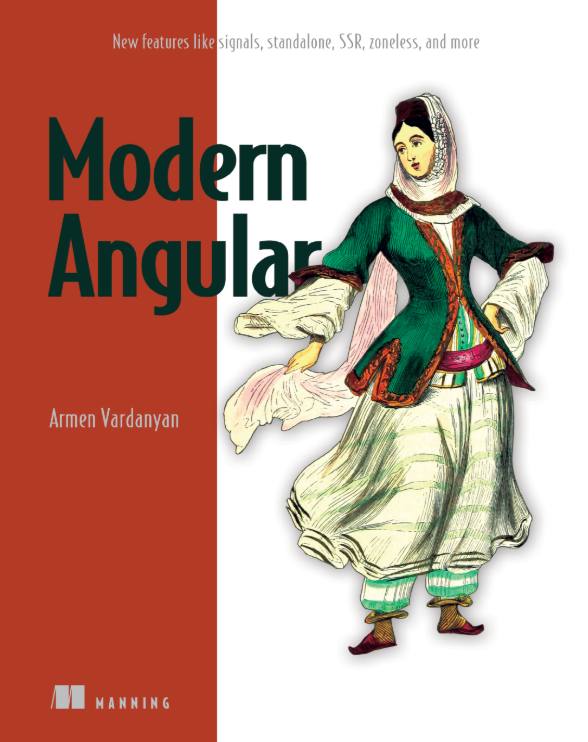
My book, Modern Angular, is now in print! I spent a lot of time writing about every single new Angular feature from v12-v18, including enhanced dependency injection, RxJS interop, Signals, SSR, Zoneless, and way more.
If you work with a legacy project, I believe my book will be useful to you in catching up with everything new and exciting that our favorite framework has to offer. Check it out here: https://www.manning.com/books/modern-angular
P.S There is one chapter in my book that helps you work LLMs in the context of Angular apps; that chapter is already kind of outdated, despite the book being published just earlier this year (see how insanely fast-paced the AI landscape is?!). I hope you can forgive me ;)